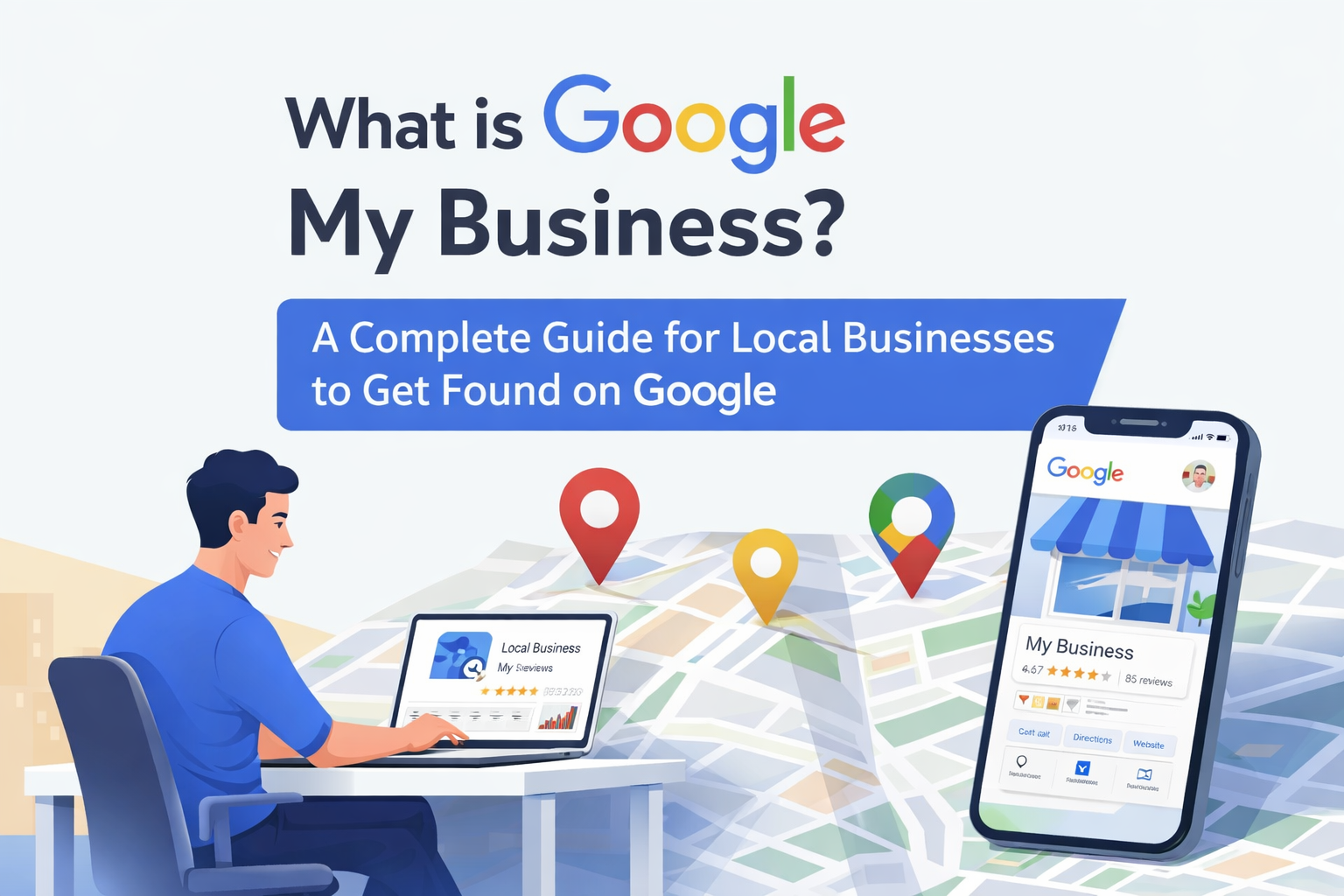
If you run a local business and want customers to find you on Google Search and Google Maps, Google My Business (GMB) is one of the most powerful tools available.
Google Business Profile (previously called Google My Business) is a free tool that allows businesses to manage how they appear on Google Search and Google Maps. It helps businesses display important information such as their address, phone number, website, photos, reviews, and business hours.
When someone searches for services like “SEO company near me” or “best restaurant near me,” Google shows business listings in the local results. These listings come directly from Google Business Profile.
By optimizing your profile properly, you can:
- Increase local visibility
- Get more calls and website visits
- Build trust with customer reviews
- Attract more local customers
In this guide, we will explain everything about Google My Business including how to create an account, verify your listing, manage reviews, and improve your local SEO performance.
How to Create an Account on Google My Business
Creating a Google Business Profile is simple and takes only a few minutes.
Steps to Create a Google Business Profile
- Go to the official Google Business Profile website.
- Sign in with your Google account.
- Click “Add your business to Google.”
- Enter your business name.
- Select your business category (example: digital marketing agency, restaurant, salon, etc.).
- Add your business location or service area.
- Enter your contact details such as phone number and website.
- Submit the information and proceed to verification.
After verification, your business will start appearing on Google Search and Maps.
Is Google My Business Free?
Yes, Google My Business is completely free.
Businesses do not need to pay any fee to:
- Create a business listing
- Appear in Google Maps
- Show business information on Google Search
- Collect customer reviews
- Upload photos and posts
However, businesses may choose to run paid advertising campaigns using Google Ads to get additional visibility, but the Google Business Profile itself is free to use.
Google My Business Dashboard: How to Check Performance
The Google Business Profile dashboard provides valuable insights about how customers interact with your listing.
You can track:
Key Performance Metrics
- Search Views – How many people saw your profile in search results
- Map Views – How many users found you on Google Maps
- Website Clicks – Number of visitors to your website
- Phone Calls – Calls made directly from your listing
- Direction Requests – How many people asked for directions
How to Access Performance Data
- Log in to your Google Business Profile.
- Click Performance in the dashboard.
- Select the date range to view data.
These insights help businesses understand customer behavior and local search performance.
How to Verify the Google My Business Profile
Verification is necessary to prove that you are the legitimate owner of the business.
Google offers several verification methods:
Common Verification Methods
Postcard Verification
Google sends a postcard with a verification code to your business address. Once received, enter the code in your dashboard.
Phone Verification
Some businesses can verify their profile via an automated phone call or SMS.
Email Verification
In some cases, Google allows verification via email.
Video Verification
Businesses may also need to record a video showing their business location and operations.
After verification, your profile becomes fully active and visible to customers.
Google My Business Questions and Answers
Google allows customers to ask questions directly on your business profile.
Examples of common questions include:
- What are your business hours?
- Do you provide home delivery?
- What services do you offer?
Best Practices
- Monitor questions regularly
- Provide accurate answers
- Add frequently asked questions yourself
This helps customers get quick information and improves trust.
How to Deal with Bad Reviews in Google My Business
Negative reviews are common for most businesses. The key is how you respond to them.
Tips for Handling Negative Reviews
Stay professional
Never argue with customers publicly.
Respond quickly
A quick response shows that you care about customer feedback.
Offer a solution
Try to resolve the issue by asking the customer to contact you.
Example response:
“Thank you for your feedback. We are sorry for your experience and would like to resolve this issue. Please contact us directly so we can assist you.”
Handling reviews properly can improve your brand reputation and customer trust.
How to Verify Bulk Google My Business Listings
Businesses with multiple locations can use bulk verification.
Requirements
- At least 10 locations
- Same business brand
- All listings managed under one account
Steps for Bulk Verification
- Create all business locations in the dashboard.
- Go to Verify Now.
- Select Bulk Verification.
- Submit the verification form.
- Wait for approval from Google.
This process allows businesses to manage multiple locations efficiently.
What is the Google My Business Profile Photo Size?
Images are very important for attracting customers.
Recommended Image Sizes
Profile Photo
- 250 × 250 pixels (minimum)
Cover Photo
- 1024 × 576 pixels
Post Images
- 1200 × 900 pixels recommended
File Format
- JPG or PNG
High-quality images improve engagement and increase profile views.
How to Add Keywords in Google My Business Profile
Adding keywords helps improve your local search visibility.
Where to Add Keywords
- Business description
- Products and services section
- Posts
- Questions and answers
Example:
If you are an SEO agency, your description might include keywords like:
- SEO services
- Digital marketing agency
- Local SEO expert
Avoid keyword stuffing and keep descriptions natural.
How to Recover a Suspended Google My Business Profile
Sometimes Google may suspend a profile due to policy violations.
Common Reasons for Suspension
- Incorrect business information
- Using virtual office addresses
- Keyword stuffing in business name
- Duplicate listings
Steps to Recover Suspended Profile
- Fix all incorrect information.
- Review Google Business Profile guidelines.
- Submit a reinstatement request to Google.
- Provide proof such as business registration documents.
After review, Google may restore your profile.
How to Post Content on Google My Business Profile
Businesses can publish posts to engage customers.
Types of posts include:
- Offers and promotions
- Product announcements
- Event updates
- Business news
Steps to Create a Post
- Log in to Google Business Profile.
- Click Add Update.
- Add text, images, and a call-to-action.
- Publish the post.
Regular posting helps increase engagement and profile activity.
How to Add Social Profile Links to Google My Business Profile
Adding social media links helps customers connect with your brand.
Steps
- Log in to your Google Business Profile.
- Edit the business information.
- Add social links such as:
- YouTube
These links improve brand visibility and allow customers to follow your business on other platforms.
Conclusion
Google Business Profile is an essential tool for any business that wants to attract local customers. It helps businesses appear in local search results, collect reviews, and provide important information to potential customers.
By properly optimizing your profile, regularly posting updates, managing reviews, and monitoring performance, you can significantly improve your local SEO presence and customer engagement.
If you want your business to rank higher in local search results and attract more customers, optimizing your Google Business Profile should be a top priority.